Main Screen
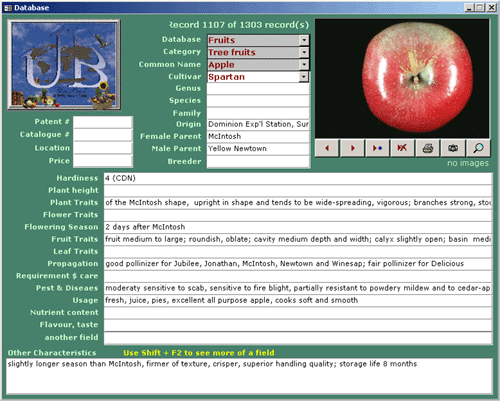
Unibase organizes your plant (or other) data
dividing them hierarchically by ‘database’, ‘category’, and
‘common name’. When you choose a new database, category or common name Unibase
displays only those plants ( items) belonging to the chosen group. The number of
records in the group is displayed at the top of the screen.
Unibase provides 26 fields for each cultivar(items) in which you can display and store
text information on an individual cultivar. All the fields are text based with the sole
exception of the Price/Unit field. In this field you are only allowed numeric input. There
is a limit of 255 characters for the smaller fields at the top of the screen. The larger
fields at the bottom of the screen can hold up to 64K of information. The size of the
field box on the screen does not limit how much data you can enter. You will see that your
text scrolls as you type. If you want to see more of your text hold down the shift key on
your keyboard and press the F2 key. This will open up a ‘zoom box’ that will
enable you to see more of your text.
To go directly to a specific cultivar (item) the simplest way is to choose the
cultivar (item) name in the drop-down list of cultivar (item) names or to type the
first few letters of its name in the list box.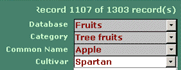
If the cultivar in question exists you will be moved directly to the record. If it does
not exist then the program offers to create it for you.
To move from one record to another a series of navigation buttons is available on the
toolbar. By clicking you can move forward or backwards through the records one at a time
or move directly to the beginning or the end of the series.
You will also find access to the Options, Pedigree, Search and Datasheet screens from the toolbar.
In the top right corner of the main screen a series of buttons allow you to easily manage
images.
You could add as many as images you wish for each item
and you could manage your images by clicking on provided
buttons.
To print the information you have stored on a cultivar you
can use the toolbar button to print a single record or print the current group of records
by using the ‘Batch Print’ button.
 |
|






 sys
sys
